Independent setup guide · not affiliated with Wavlink · no sign-in or phone call required
ap.setup / Models / AC1200 setup
Indoor plug-in · dual-band

Wavlink AC1200 extender setup.

The WN579 series is Wavlink's most common wall-plug repeater — dual-band, three modes, and the same ap.setup login as every other Wavlink unit.

Quick answer

Plug it in near your router, connect to its WAVLINK-XXXX WiFi from your phone or laptop, then open ap.setup or 192.168.10.1 and sign in with admin. Pick Repeater mode unless you have a reason to choose AP or Router.
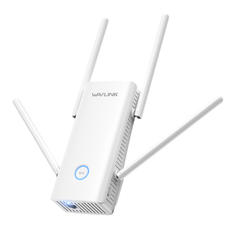
Wavlink AC1200 white wall-plug WiFi extender with four antennas
Which models this covers

The WN579 / WN575 dual-band family

These are wall-plug, dual-band (2.4GHz + 5GHz) repeaters that support Repeater, Access Point and Router modes. They log in identically — only the antenna layout and box art differ between them.

WN579X3 · Aerial XWN579X3-D · Aerial XD (2-pack)WN579G3WN579A3WN575A3

Not sure which one you have? The model number is on a sticker on the underside of the unit — check the full model directory if it's not one of the above.

Before you touch the address bar

The 60-second prep

Skipping these is why the login page "won't load" for most people. Do them in order.

  1. Plug the extender into an outlet near your router.Keep it close for first-time setup — you'll move it to the dead zone afterward.
  2. Wait for the power light to settle.About a minute, until the LED stops flashing and holds steady.
  3. Connect your phone or laptop to the extender's own WiFi.Look for WAVLINK-XXXX or a network ending in _Ext. No password needed at this stage.
  4. Only now open your browser.You must be on the extender's network — not your home WiFi — for the setup page to appear.
Log in

The setup address

http://ap.setup
http://192.168.10.1

Type it in the address bar, not the search box. If ap.setup doesn't load, the numeric address does the same job.

When it asks for a password

On a new or freshly reset WN579/WN575 unit, the default is username admin or blank, password admin.

Pick your mode

Repeater, AP or Router?

AC1200 models support all three modes. Most people only need the first.

most common

Repeater / Extender

Rebroadcasts your existing WiFi wirelessly to reach a far room. No cable needed.

wired

Access Point

Run an Ethernet cable to it and it creates fresh WiFi — the most stable option if you can wire it.

replaces router

Router

The unit becomes your main router, handling the connection from your modem directly.

Read the lights

What the LED is telling you

Solid green

Strong link to your router. Setup worked — go ahead and relocate the unit.

Amber / orange

Connected but weak. Move the extender closer to the router and re-check.

Red

No usable link to the router. Wrong WiFi password, or placed too far out.

Off / no light

Check the outlet before anything else.

When nothing loads

Reset and start clean

  1. Find the recessed Reset pinhole on the side or bottom — you'll need a paperclip.
  2. Hold it while the unit is powered on, roughly 8–15 seconds.
  3. Let it reboot fully.All settings return to factory defaults.
  4. Begin again from "The 60-second prep."The default password admin works again after a reset.
Common questions

AC1200 extender FAQ

Does the WN579X3 Aerial X and Aerial XD set up the same way?
Yes. The XD is the dual-pack version sold with a second unit, but each unit logs in and configures exactly like a single WN579X3.
What's the default login for a Wavlink AC1200 extender?
Browse to ap.setup or 192.168.10.1 while connected to the extender's own WiFi, then sign in with admin as the password (username admin or left blank).
Can a WN579 series extender act as my main router?
Yes — AC1200 models support Router mode alongside Repeater and Access Point modes, so the unit can take a modem connection directly if needed.
Who wrote this

Why you can trust this page

About this guide

An independent resource maintained by the apsetupwavlink.com team, focused on clear, no-nonsense help with Wavlink extender setup. Not affiliated with Wavlink.

Independent help resource. Not the official Wavlink site and not affiliated with or endorsed by Wavlink. Model names are trademarks of their owner and used here only to help users identify their device.