Independent setup guide · not affiliated with Wavlink · no sign-in or phone call required
Wavlink WiFi extender / access point

Set up your Wavlink extender without the guesswork.

Most failed setups come down to one mistake: typing ap.setup into a search engine instead of the browser's address bar. Start here and you'll skip it.

Type this where website addresses go — not in the Google search box.

http://192.168.10.1
Start here

What is ap.setup — and why won’t it open?

Whether you type it as ap.setup or “ap setup” with a space, it’s the same thing — and it is not a website out on the internet. It’s a local shortcut that only your extender answers, and only while your phone or laptop is connected directly to the extender’s own network. Type it into Google and you’ll get search results instead of your device — which is exactly why most “ap.setup not working” complaints happen.

Two things to know about ap.setup before you rely on it:

It’s brand-specific.

The ap.setup address is used by Wavlink, Comfast and Dodocool extenders. Other makes use a different address entirely.

It needs the right connection.

If you’re still on your home WiFi rather than the extender’s network, ap.setup has nothing to answer it. Connect to the extender first.

If ap.setup still won’t load while you’re connected to the extender, use the numeric address instead — it does the same job:

http://192.168.10.1
Before you touch the address bar

The 60-second prep

Skipping these is why the login page “won’t load” for most people. Do them in order.
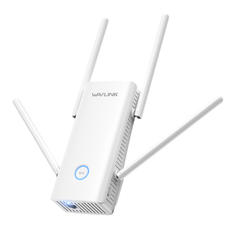
Wavlink AC1200 white wall-plug Wi-Fi extender with four antennas
AC1200 plug-in
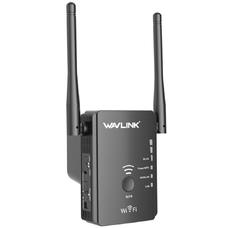
Wavlink white desktop Wi-Fi extender with two antennas
Dual-antenna
Wavlink N300 black wall-plug Wi-Fi range extender
N300 repeater
  1. Power the extender near your router.For first-time setup, keep it in the same room. You’ll move it to the dead zone after it’s configured.
  2. Wait for the power light to settle.Give it about a minute until the LED stops flashing and holds steady.
  3. Connect your phone or laptop to the extender’s own WiFi.Look for a network named WAVLINK-XXXX or one ending in _Ext. No password is needed at this stage on most models.
  4. Only now open your browser.You must be connected to the extender — not your home WiFi — for the setup page to appear.
Three ways in

The setup address

Any one of these opens the same login page. If one doesn’t resolve, try the next — different models ship with different defaults.

http://192.168.10.1
http://wifi.wavlink.com
http://ap.setup

Watch the typo: it’s 192.168.10.1 with the number one and zero — never the letters “l” or “O”. 192.168.l0.1 will always fail.

When it asks for a password

On a new or freshly reset unit the default password is usually admin (username admin or left blank). If you’ve changed it before and forgotten it, you’ll need to reset — covered below.

Pick your mode

What do you actually want it to do?

Wavlink units can run in more than one mode. Picking the wrong one is a common cause of “it connected but there’s no internet.”

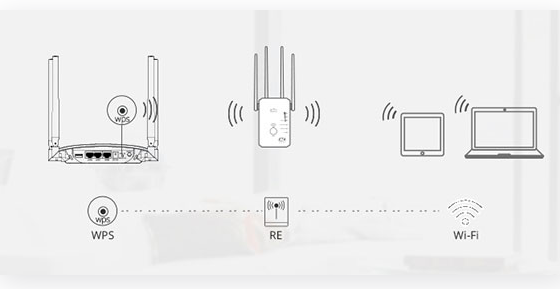
Diagram: a router links to the Wavlink extender by WPS, and the extender rebroadcasts Wi-Fi to phones and laptops
How an extender sits between your router and your devices.
most common

Repeater / Extender

Rebroadcasts your existing WiFi wirelessly to reach a far room. No cable to the extender needed.

wired

Access Point

You run an Ethernet cable to it and it creates fresh WiFi. The most stable option if you can wire it.

replaces router

Router

The unit becomes your main router, handling the connection from your modem directly.

Read the lights

What the LED is telling you

Before you assume the setup failed, check the indicator. It usually explains the problem on its own.

Solid green

Strong link to your router. Setup worked — go ahead and relocate the unit.

Amber / orange

Connected but weak. Move the extender closer to the router and re-check.

Red

No usable link to the router. Wrong WiFi password entered, or it’s placed too far out.

Off / no light

Check the outlet and power switch before anything else.

LED colours and behaviour vary by model — confirm against the label or manual for your exact unit.

When nothing loads

Reset and start clean

If the login page never appears and the addresses all fail, a factory reset clears any stuck or forgotten configuration.

  1. Find the recessed Reset pinhole.Usually on the side or bottom. You’ll need a paperclip.
  2. Hold it while the unit is powered on.Press and hold roughly 8–15 seconds — about 8 is enough on most Wavlink units.
  3. Let it reboot fully.The lights will flash and settle. All settings return to factory defaults.
  4. Begin again from “The 60-second prep.”The default password admin works again after a reset.
Who wrote this

Why you can trust this page

About this guide

An independent resource maintained by the apsetupwavlink.com team, focused on clear, no-nonsense help with Wavlink extender setup. Not affiliated with Wavlink.

This is an independent help resource created by enthusiasts. It is not the official Wavlink website and is not endorsed by or affiliated with Wavlink. “Wavlink” is the trademark of its respective owner. For warranty service or firmware downloads, visit the manufacturer’s official site.